An overview of how Admin Owners can manage Administrator roles and permissions. This includes adding and removing administrators in your Sprintax Entity.
Adding Administrator
Admin Owners will manage and control user access and permissions.
1. Login to your Sprintax Account.
2. On the upper right corner click on Account.
3. Click on Administrators Tab.
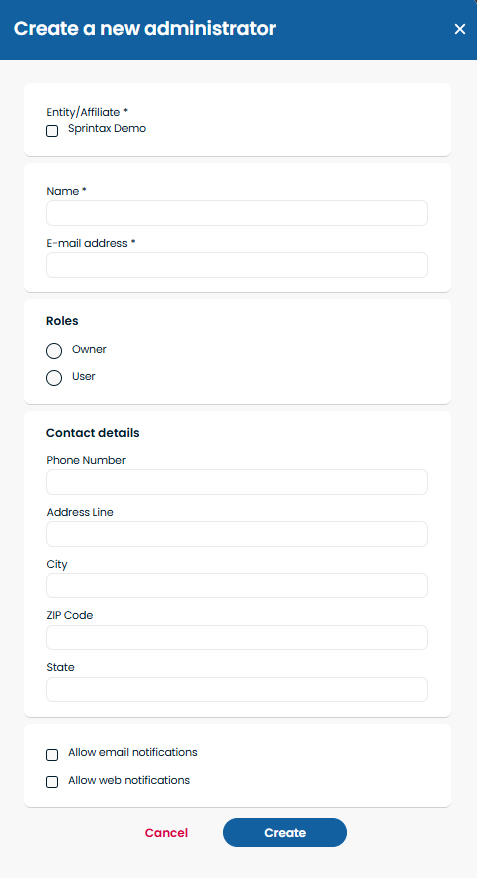
4. Click on the Add an Administrator button select Entity/Affiliate, input Admin Name, Email Address, select which role and permissions to assign them. You may add other contact details and set their notification settings as well.
An email will be sent asking the user to setup a password.
5. We recommend selecting the options to allow for Web or Email Notifications
Deactivate Administrators
1. Head to → Account → Administrators
2. From the Administrator Overview, click to open the right-hand panel.
3. Click the toggle button under Account Status to deactivate the admin.
Manage Administrators
1. To Manage permissions → Click on the administrator and a side panel will appear
2. The side panel allows owners to manage role, edit permissions, contact details and other features.
3. Click Save once the profile is updated.
For more information please see, Administrator Roles and Permissions